Investigating Windows Error Reporting (WER)
30/10/2026 Friday
Windows Error Reporting (WER) is the Windows feature responsible for
collecting information when an application crashes, stops responding, or
encounters a problem that the operating system or one of its components
chooses to report. When such an event occurs, WER creates a report
folder containing a Report.wer file, a plain-text summary that describes
the event type, the affected application and its executable path, a
unique report identifier, and a set of signature values such as the
faulting module and exception code. Reports are kept after submission,
so a history of application failures and non-critical diagnostic events
can accumulate on a system over time.
Digital Forensics Value of Windows Error Reporting (WER)
Windows Error Reporting artifacts can be used to show that a specific
program was present and running on a system. A crash or hang report is
generated only when the application was executing, so each record ties
an executable name and full path to a point in time, even when the
program has since been removed or its other execution traces have been
cleared. Executable paths in user profiles, removable volumes, or
unusual folders may help identify portable tools, emulators, or other
software that are not visible in installation records, while repeated
reports for the same executable can show how often a program was used
and whether it failed consistently. The faulting module and exception
code may help distinguish an ordinary application failure from one
involving an unexpected or injected DLL, and non-critical reports can
reflect Windows Update, Store, or setup activity.
Location of Windows Error Reporting (WER)
Windows Error Reporting files can be found at the following locations:
/ProgramData/Microsoft/Windows/WER/ReportArchive/
/ProgramData/Microsoft/Windows/WER/ReportQueue/
Each report is stored in its own subfolder, named after the report type,
the application, and the report identifier, and contains a Report.wer
file. The ReportArchive folder holds reports that have already been
processed, while ReportQueue holds reports that are waiting to be sent.
Available reports depend on the Windows version, the reporting settings,
and how long the reports have been retained on the system.
Analyzing Windows Error Reporting (WER) Artifacts with ArtiFast
This section will discuss how to use ArtiFast to extract Windows Error
Reporting (WER) artifacts from Windows device files and what kind of
digital forensics insights can be gained from the artifacts.
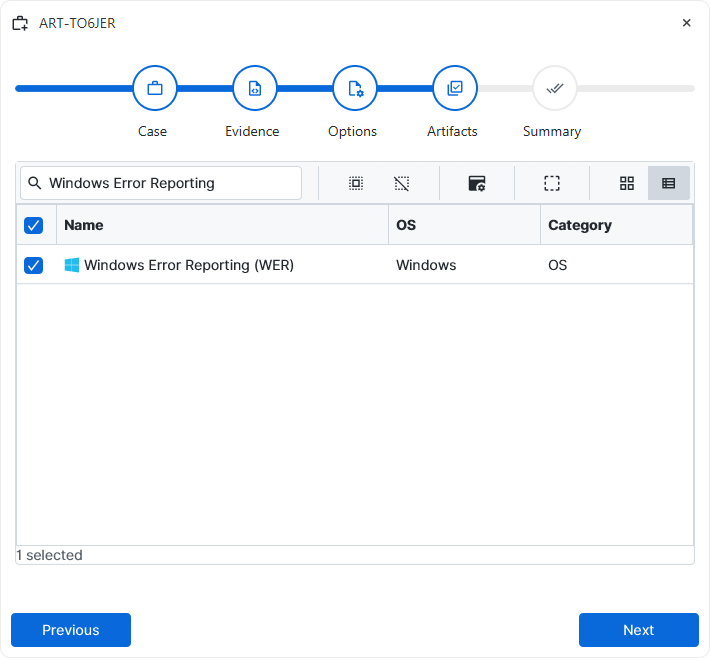
After a case has been created and evidence has been added for the
investigation, at the Artifact Selection phase, the Windows Error
Reporting (WER) artifact parser can be selected:
×
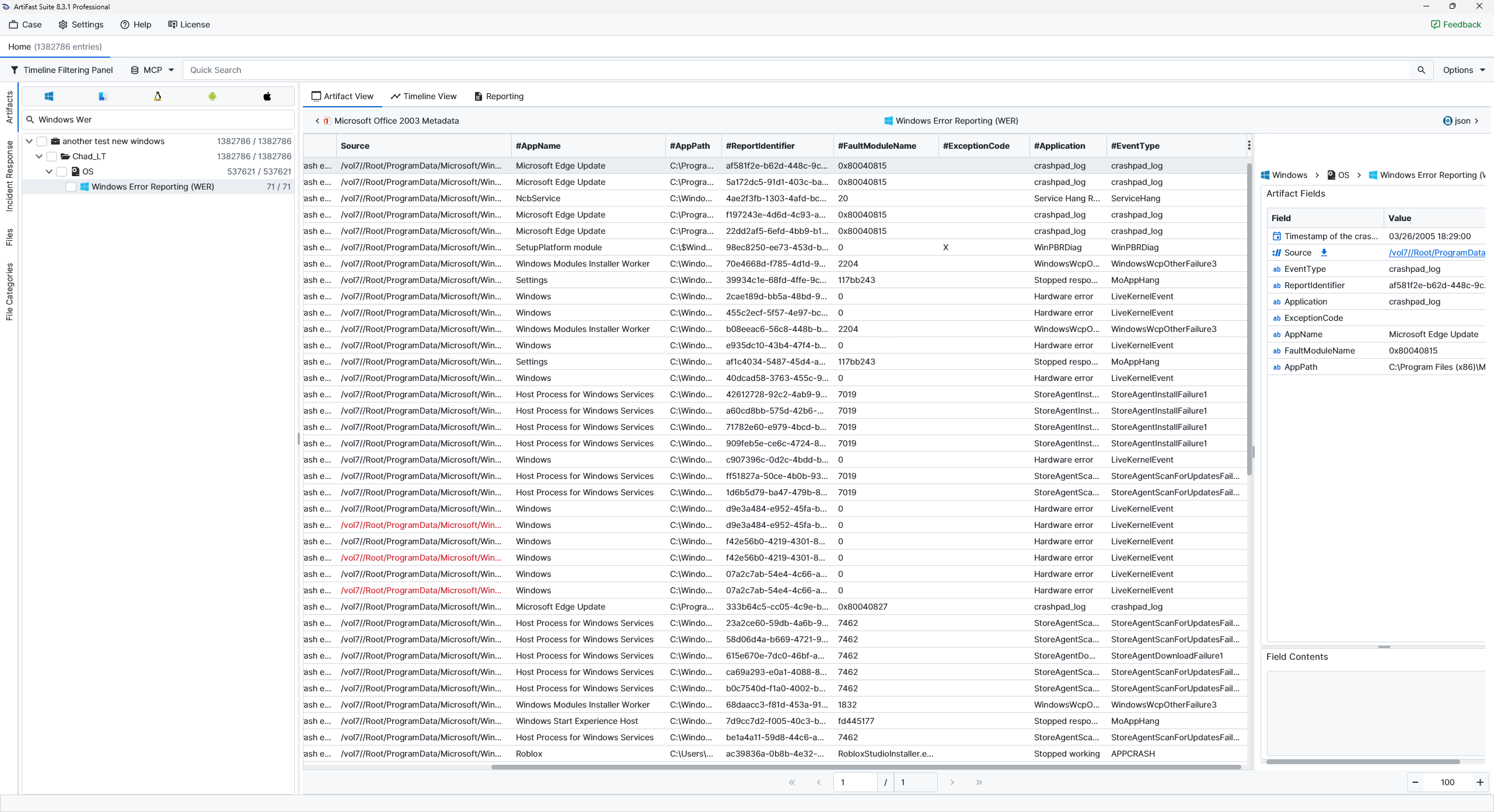
Once the ArtiFast parser plugins complete processing the artifact for analysis, it can be reviewed via Artifact View or Timeline View, with indexing, filtering, and searching capabilities. Below is a detailed description of Windows Error Reporting (WER) artifact in ArtiFast.
Windows Error Reporting (WER)
- Timestamp of the crash event: The date and time recorded for the reported event.
- EventType: The type of reported event.
- AppName: The display name of the application associated with the report.
- AppPath: The full path of the executable involved in the event.
- ReportIdentifier: The unique identifier assigned to the report.
- FaultModuleName: The module associated with the failure.
- ExceptionCode: The exception or error code recorded for the event.
- Application: The problem description recorded for the event.
For more information or suggestions please contact: asli.beyhan@forensafe.com
